How a Free AI Music Video Generator With No Signup Required Fits Into Your First Song Edit
Published
The first useful file from a video generator might be a five-second shot of sunlight crossing a wall. If the song, title and timing still need to be added, that file is footage. Treating it as footage helps you see what to do next.
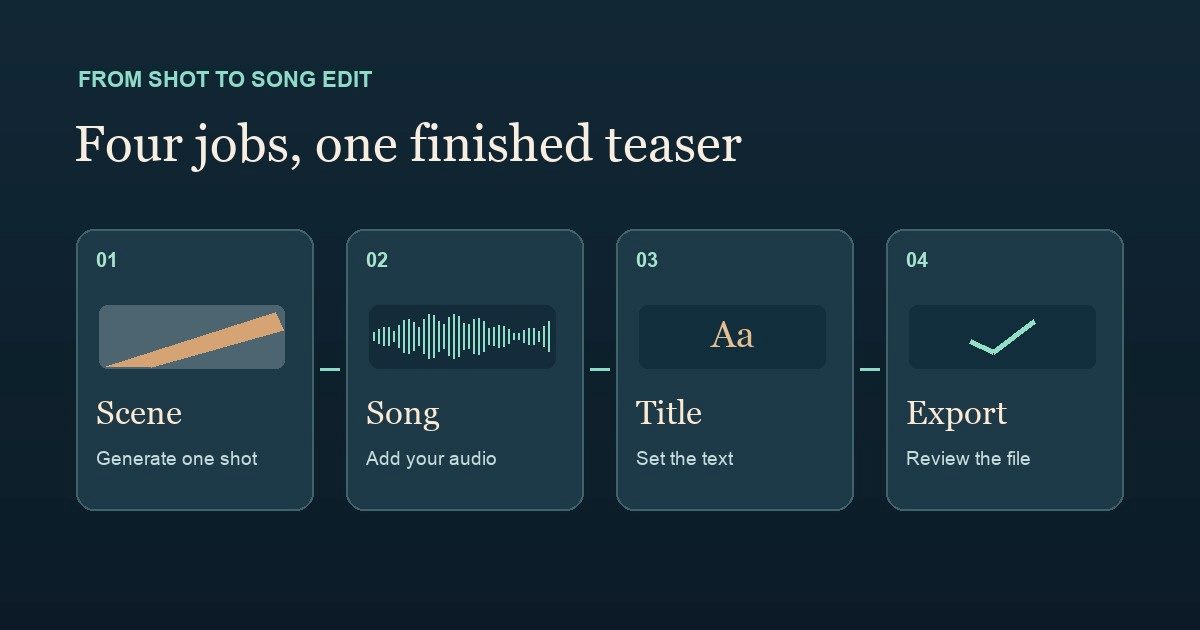
The workflow has four steps. Make a shot, add your song, set the on-screen text and review the exported file. The generator helps with the first step. The rest happens in the edit and playback check.
## Give the generator a shot it can attempt in a few seconds
Pick one moment of the song you have permission to use. For a fictional piano release, imagine a low note followed by a brief pause. A band of afternoon light crosses a piano lid. The scene needs that movement, a fixed camera and an uncluttered frame. It does not need to show hands playing every note.
A practical prompt for that shot:
> A fixed vertical view of a closed upright piano in an empty rehearsal room. A narrow strip of afternoon sunlight moves across the lid. Soft natural shadows, no person, no lettering.
If you already have artwork to work from, a start and end frame can give the clip a visual direction. Check the framing and object positions in both images before submitting. Two images that differ in several ways give you more movement to inspect afterwards.
Disclosure: This guide is published by MusicMaker and includes our own tool.
The MusicMaker free short music video generator lists text prompts and paired frames as inputs to its MiniMax H3 tool. Its page describes free five-second clips at 480p without signup. The form starts in 9:16 and also lists 16:9 and 1:1. Choose a shape based on where the finished piece will be viewed, then preview the entire result before downloading. The piano example describes a workflow to try, with no recorded output or generation test.
## Put the song on a separate track
Open a project in your video editor at the intended aspect ratio. Add the song excerpt as an audio track, then place the downloaded visual above it. Listen once to the excerpt alone and choose the moment the picture should change. For the piano example, the light could move just before the pause, leaving the end of the phrase some room.
Play the clip’s audio separately before you export. A generated scene can have its own background sound. If that sound fights the song, mute it. If it adds something you want to keep, lower it and listen on a phone speaker as well as headphones. The Flaq AI free video generator is another example of a prompt or dual-frame tool whose official page describes built-in sound. A generated scene’s audio and the song you bring to the edit are two separate sources to check.
## Add only the text the audience needs
Put the song title and artist name into the edit where they can be changed later. If you add lyrics, type them yourself and check their timing against the audio. Keep the lettering large enough to read on a phone, and leave space around it so the viewing app’s controls are less likely to cover it.
Play the export once muted. A person who sees it without sound should still be able to read the essential text and recognize what the teaser is for. Play it again with sound. Check that the song begins and ends where you intend and that no stray generated noise jumps out during a quiet section.
## Review the file you will actually share
Open the exported file outside the editor. Confirm the frame shape, run time and song mix. Check the first and last frames for a stray black frame or a title that disappears too early. A five-second 480p source can be useful for a short teaser. Exporting it at a higher resolution does not restore detail missing from the original clip.
For a first release, keep three files together: the downloaded shot, the audio excerpt you used and the final export. If you later need to fix the title, turn down the ambient audio or adjust the opening, you can return to the edit without generating the scene again.
More from the newsroom
- YituCare Launches Multilingual Site for China Medical-Travel Coordination
- Meet Knuff: A New App for Staying Connected with Family and Friends
- VAME publishes multilingual explanations of its copy-trading and direct-referral model
- Understanding Bail Bonds in California: Costs, Agreements and Co-Signer Responsibilities
- Giantsa publishes brand story on growth and documented community support
- New London Media - Where Campus Voices Get a Byline